Background
Between major portion of revenue coming from Google and diminishing market share, Firefox has existential crisis for quite some time. When the new Mozilla CEO announced Firefox’s AI-first direction, I knew it was time to jump ship. I do not want to bash the decision here because I do not have answers to Firefox’s problems. It also feels like beating a dead horse at this point.
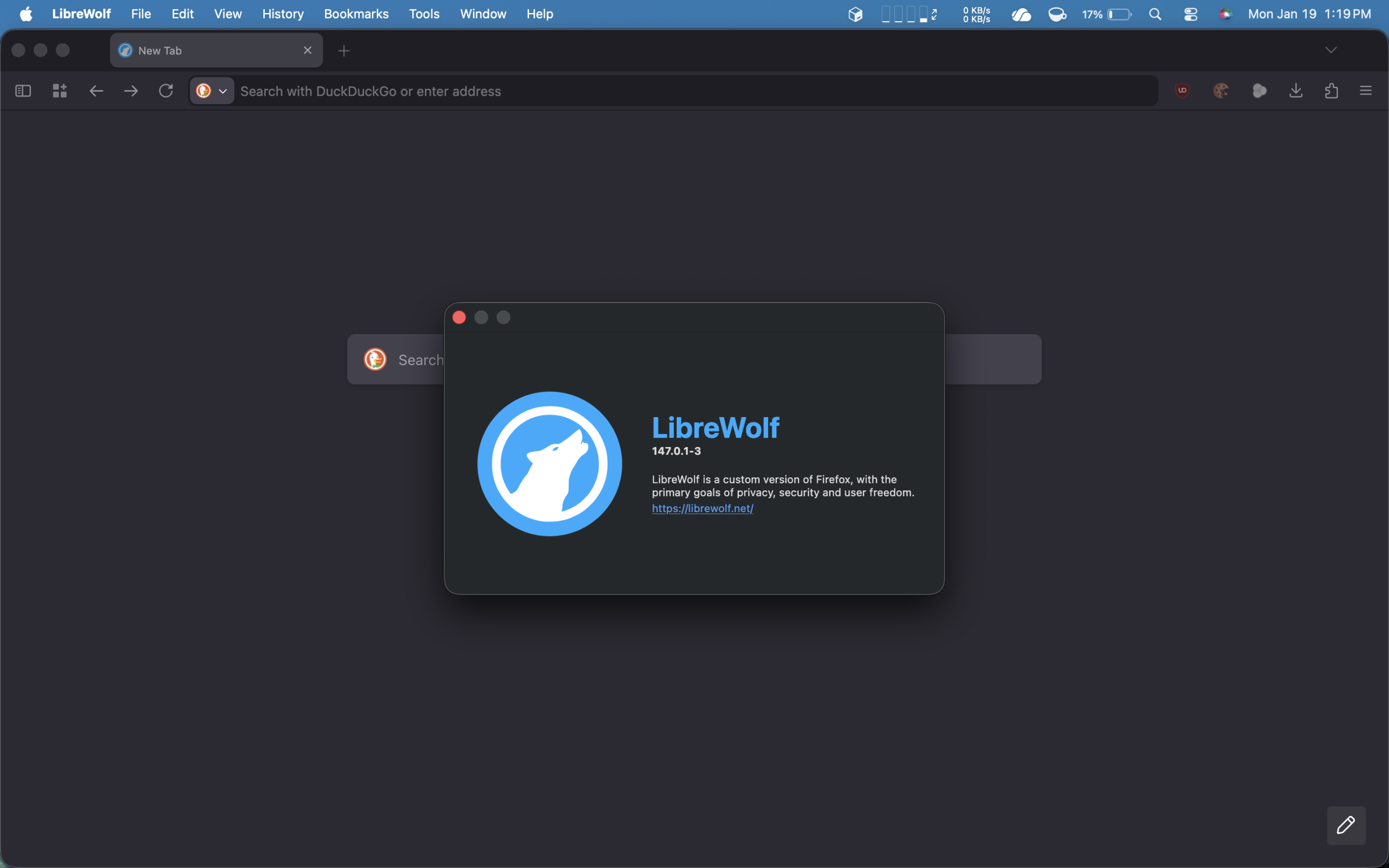
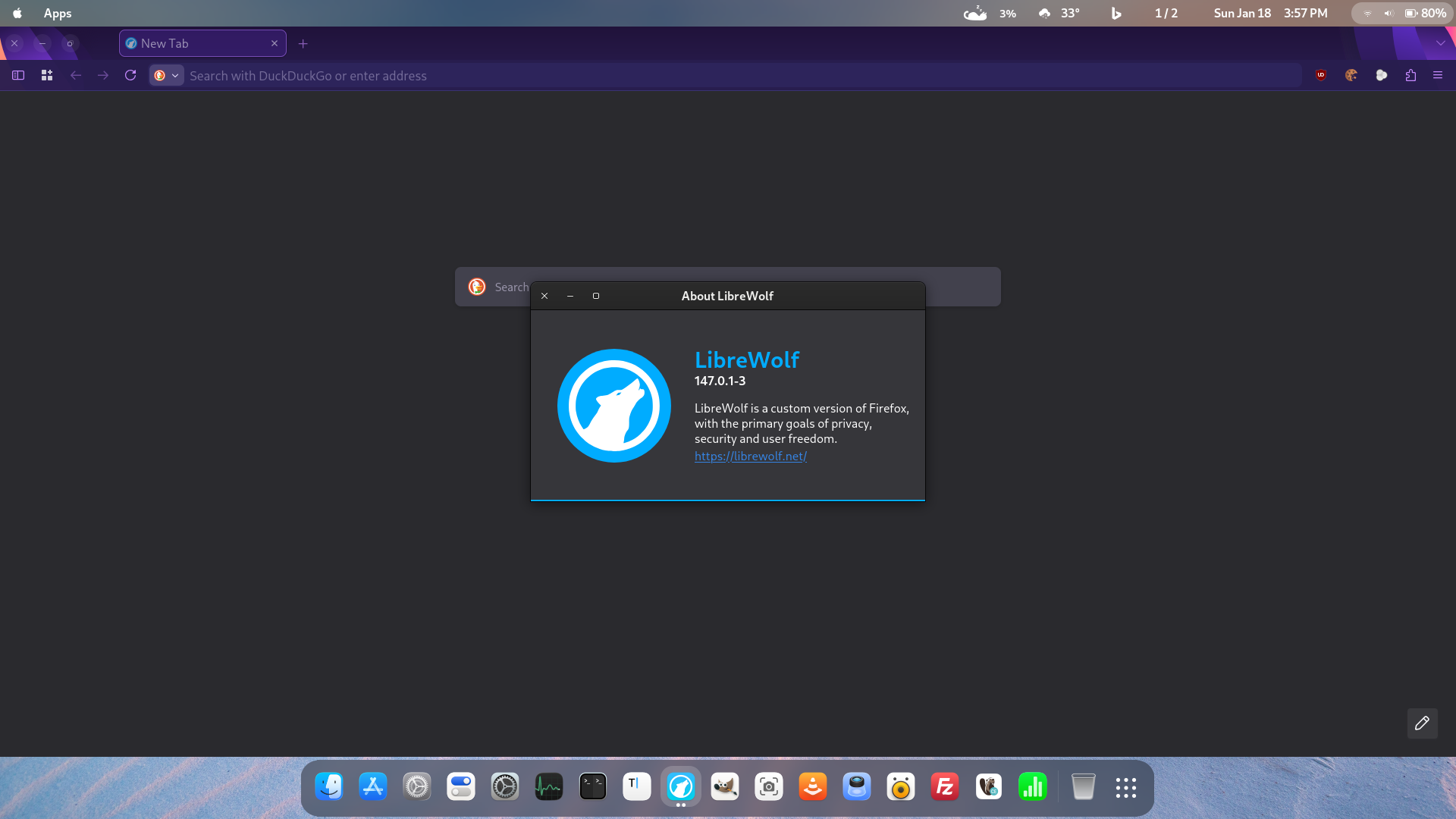
I have switched to LibreWolf on my Mac and Debian desktops. LibreWolf is a custom version of Firefox with focus on privacy and security. It has the extension uBlock Origin built-in to the browser. I can continue using the same Firefox extensions and sharing bookmarks across LibreWolf browsers with Firefox sync. Here is a quick summary of my experience so far.
Installation on macOS
LibreWolf developers are not authorized Apple developers so their binaries are not signed. To run their unsigned binaries, you need to first execute the following in Terminal app.
$ sudo xattr -r -d com.apple.quarantine /Applications/LibreWolf.appSince LibreWolf can not use Firefox’s update mechanism, you have to do this every time you replace the binary with new version.
You can also install LibreWolf using HomeBrew, a third-party package manager for macOS. I do not use HomeBrew so I can not comment on that experience.
Installation on Debian 13
LibreWolf is actually easier to install than regular non-ESR Firefox but still require multiple steps in terminal.
$ sudo apt update && sudo apt install extrepo -y
$ sudo extrepo enable librewolf
$ sudo apt update && sudo apt install librewolf -y
Passwords
LibreWolf does not save passwords. The developers do not like Firefox’s built-in password manager and prefer their users adopt third-party extensions to manage passwords. However, the built-in password manager is still part of the LibreWolf browser and works fine. LibreWolf just will not offer to save passwords to the built-in manager during login process. I have to manually enter user name and password for each site in the built-in password manager beforehand. The browser will then fill out the login forms for those sites.
Default Settings
LibreWolf’s default settings take privacy over both security and user experience.
If you like watching YouTube videos on black background instead of white background, you have to disable Settings > LibreWolf > Enable ResistFingerprinting. It is enabled by default.
If you like to be warned when you click a link that leads to bad stuffs, you have to enable Settings > Privacy & Security > Block dangerous & deceptive content. It is disabled by default and the reason is because this feature relies on Google.
AppArmor
[2026-01-28] Version 147.0.2-1 update on Debian 13 broke AppAmor, a Linux security module that restricts applications access. I removed file /etc/apparmor.d/local/librewolf, left file /etc/apparmor.d/librewolf as is, and restarted AppArmor service without any issue. The two files were identical and the one in local sub-directory was used as an override (redundant in this case). I based my fix on this forum post.
What’s Next
Other than issues mentioned above, I have not run into any problem using LibreWolf. However, I do not recommend this browser to novices based on my experience. If you are someone who does not like to tweak settings, look elsewhere. If you are a power user, come and take a look.
LibreWolf is not available on Android, iPhone and iPad so I use different browser to replace Firefox on the mobile platforms: DuckDuckGo browser. I may document my experience at later date.
This post was composed in LibreWolf on Debian 13. No AI tools were used.